
[wlm_firstname], welcome to our training section!
Click the link below to learn more about using each component of the Toolkit.
💡Note: Most downloads require saving a copy of the file to your Google Drive account. Use your Google account if asked for login details.
- The Maintenance Services Sales Strategy
- How To Brand & Customize The Complete Website Maintenance Manual (CWMM)
- How To Customize The Maintenance Objections Guide
- How To Set Up The Client Training Emails
- Using The Maintenance Service Sales Scripts
- Marketing Swipe Guides
- Lead Magnets
- Content Plans
- Checklists & Templates
- Register For Updates
The Maintenance Services Sales Strategy
For a detailed guide on the effective maintenance services sales strategy we recommend following, go here: How To Boost WordPress Maintenance Services Sales – An Effective Strategy
How To Brand & Customize The Complete Website Maintenance Manual (CWMM)
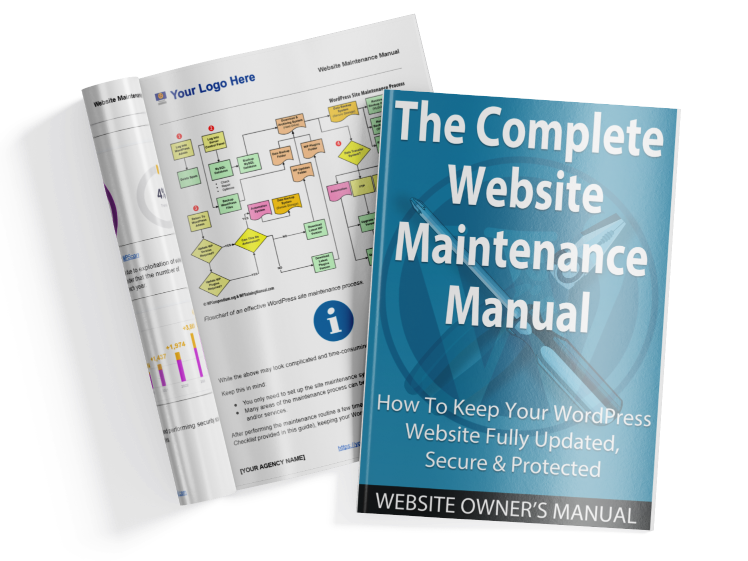
The Complete Website Maintenance Manual (CWMM) is a fully editable document. You can edit any and all of its content and distribute your branded copy of the manual to clients.
To customize the CWMM, do the following:
- Download the Manual from your Member’s Area.
- Extract the Zip File containing The READ ME and .DOCX File.
- Open the .DOCX File using a Word Processing application (e.g. MS Word, Google Docs, etc.)
- Add your branding (see tutorial below) and SAVE AS a copy (i.e. your branded master).
- Go through and edit the content if required. You can add or delete content, include links to additional products, services, or web pages, add affiliate links, special offers (e.g. special discount coupon or promotion on the last page), etc.
- When you have finished editing, save your edits.
- Personalize the manual for each client (see tutorial below) and save the manual as a PDF file.
- Distribute the Branded PDF version of the manual to your clients.
How To Brand The Manual
Branding The CWMM is really easy! All you have to do is replace the following information:
- LOGO – Add your own logo to the header section.
- [CLIENT NAME] – Replace this placeholder with your client’s name
- [YOUR AGENCY NAME] – Replace this placeholder with the name of your business or agency
- [https://yourwebsiteurl.com] – Replace this with your website address
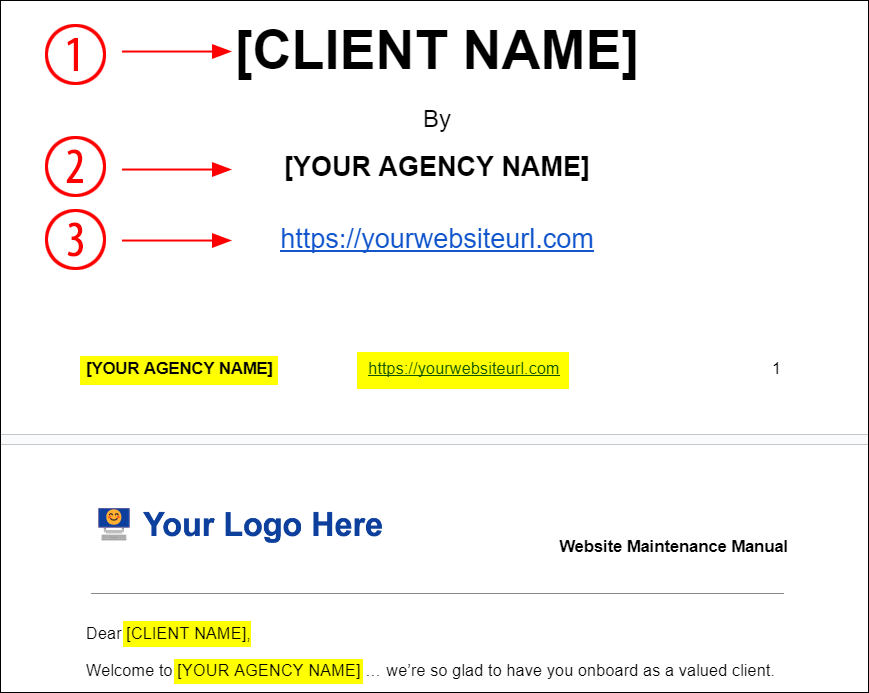
Note: We recommend replacing only the placeholders for [YOUR AGENCY NAME] and [https://yourwebsiteurl.com] first, then saving the document to create a branded master copy of the manual.
Then, for each client you plan to distribute the manual to, replace the [CLIENT NAME] tag and save your master copy as a PDF to create a personalized copy.
Let’s start by branding your manual.
We’ll begin by adding your business or agency name.
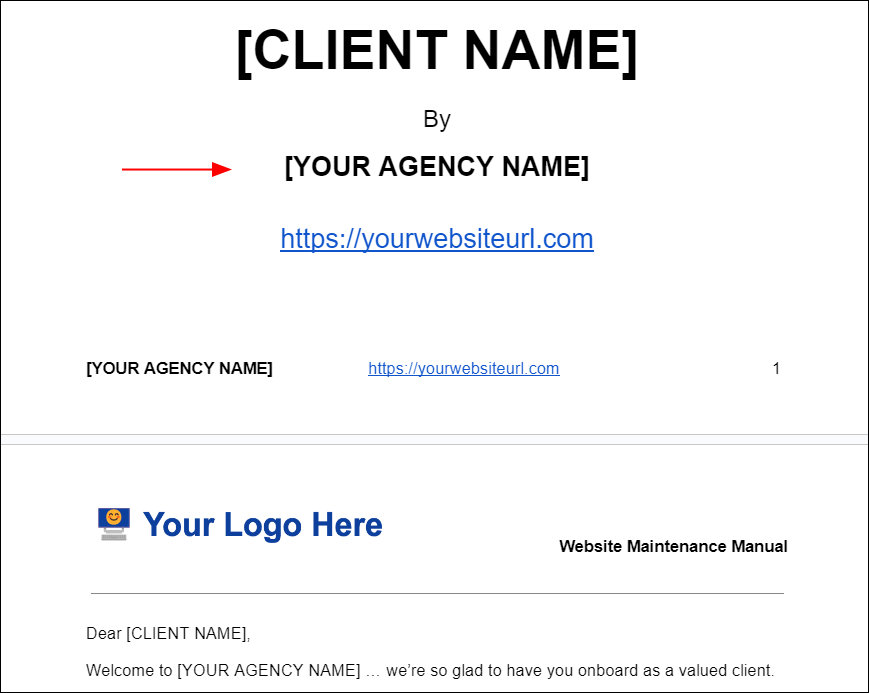
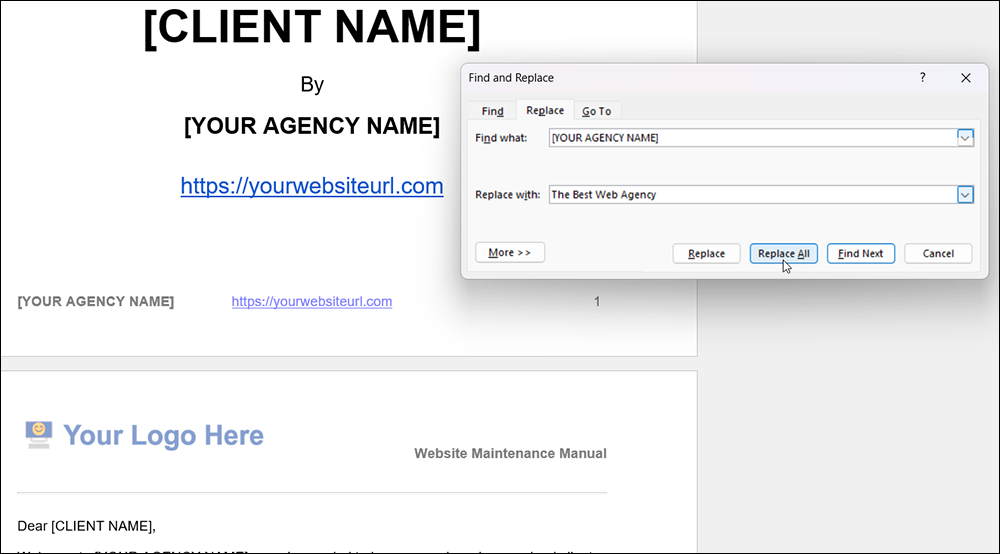
Highlight and copy the [YOUR AGENCY NAME] placeholder to your clipboard.
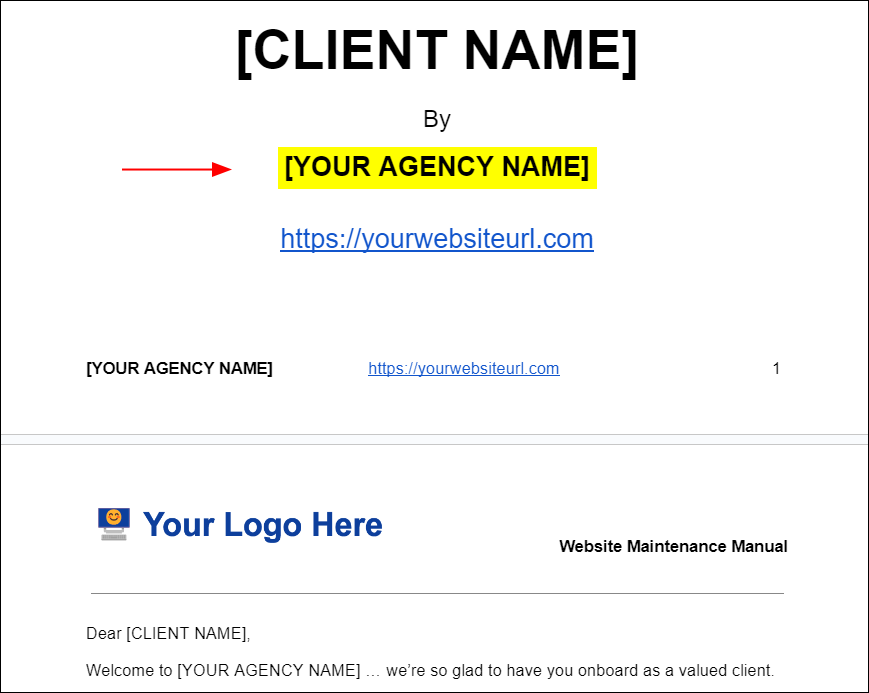
Perform a global search and replace [YOUR AGENCY NAME] with the name of your business.
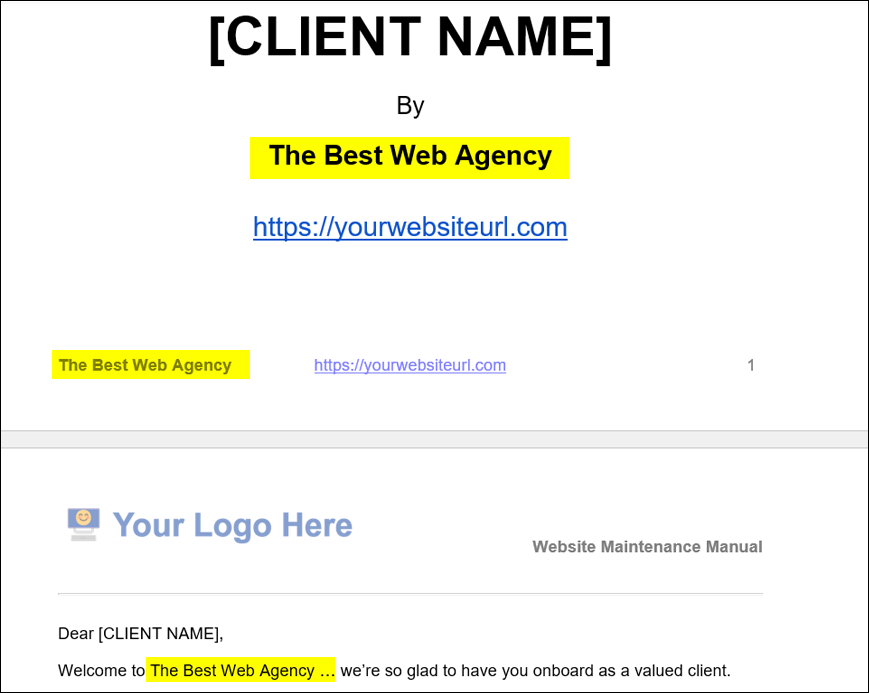
All [YOUR AGENCY NAME] instances should now display your business name.
Next, let’s brand the manual with your website address.
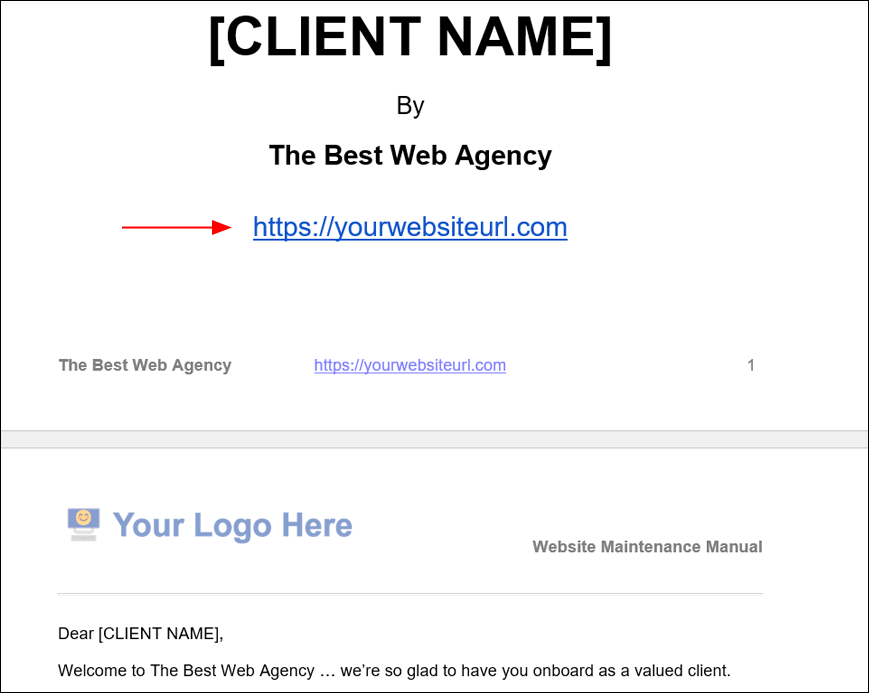
Highlight and copy the [https://yourwebsiteurl.com] placeholder to your clipboard.
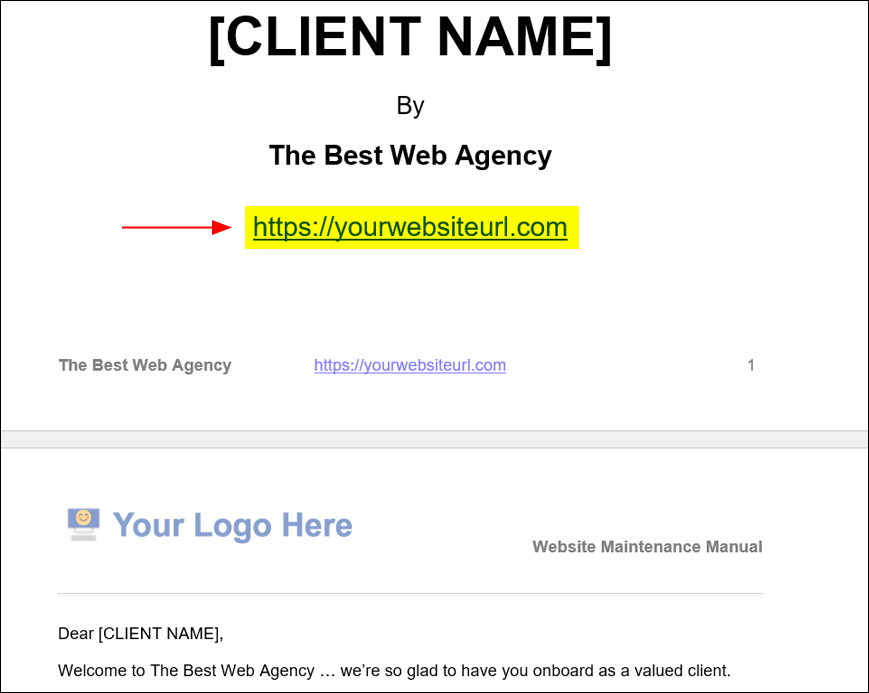
Perform a global search and replace [https://yourwebsiteurl.com] with your site’s URL.
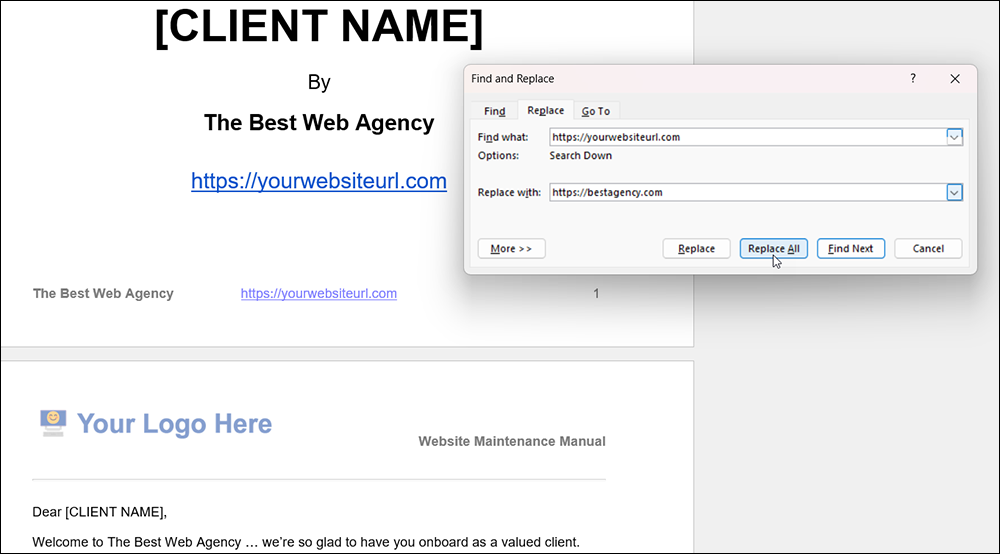
The manual should now display your website address throughout its pages.
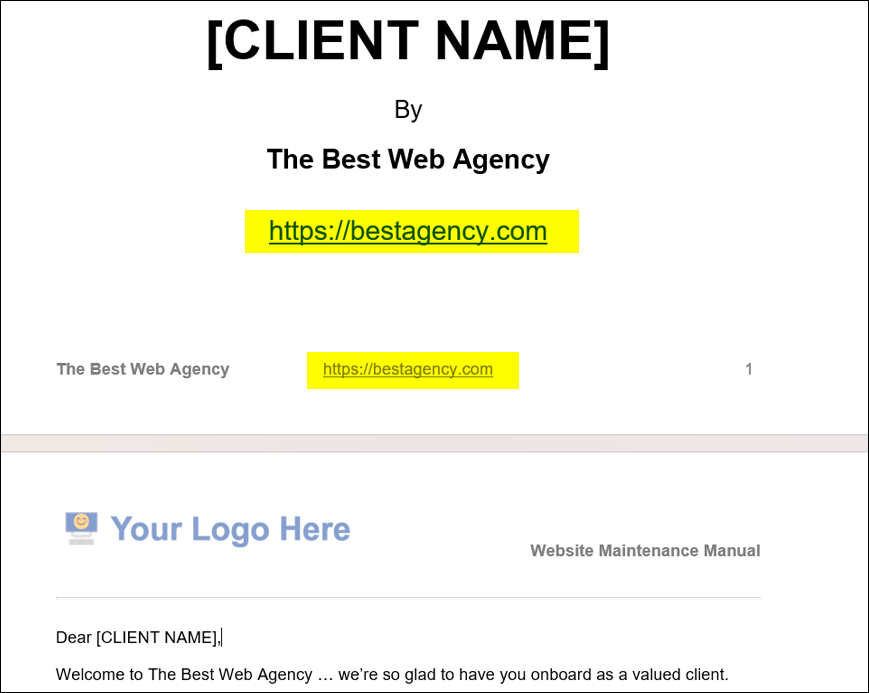
Save your branded manual. You will use this document as your master copy.
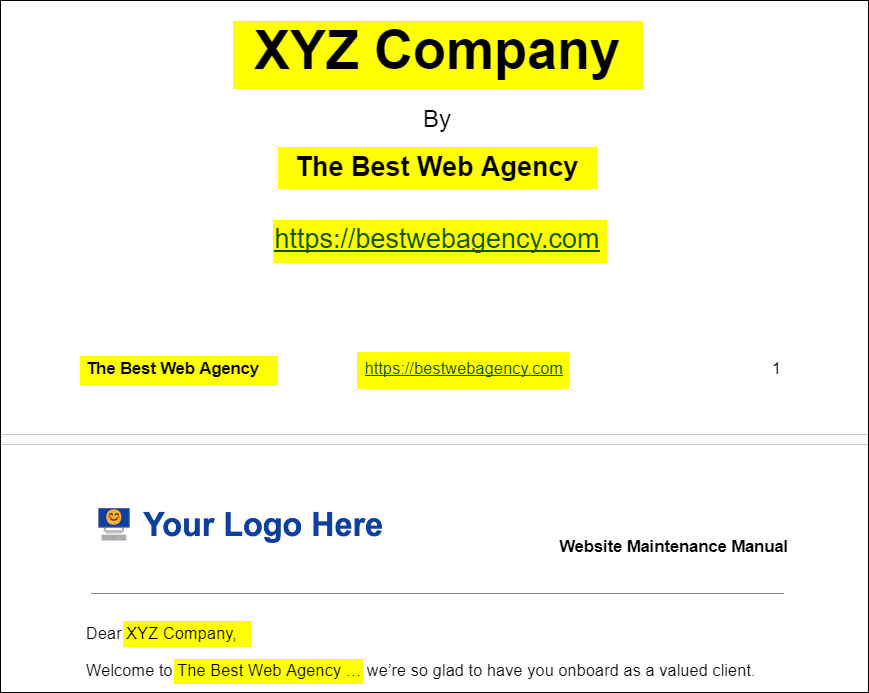
To personalize the manual for your clients, open your master copy, then highlight and copy the [CLIENT NAME] placeholder to your clipboard.
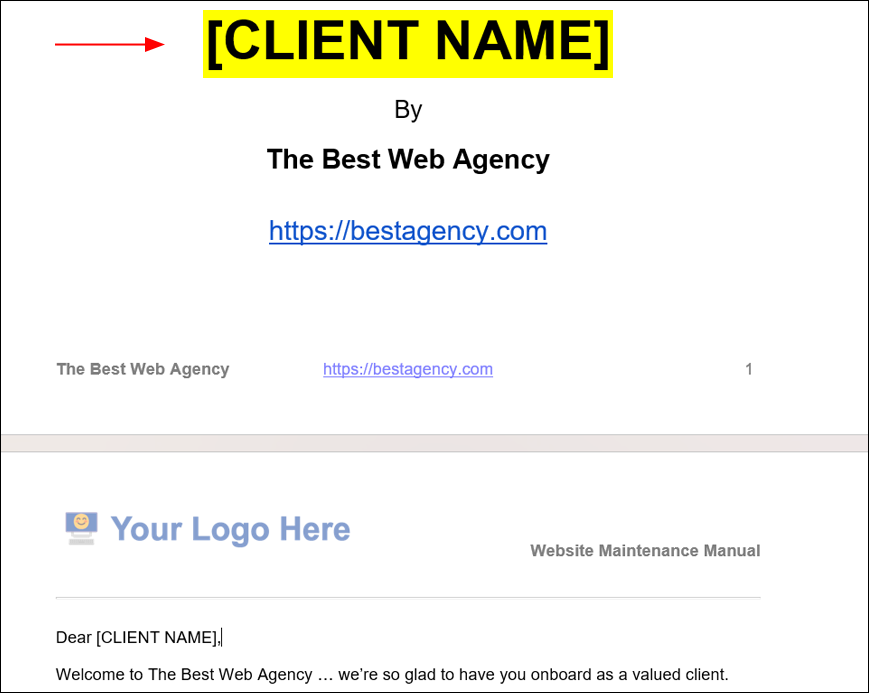
Perform a global search and replace and change [CLIENT NAME] to your client’s name.
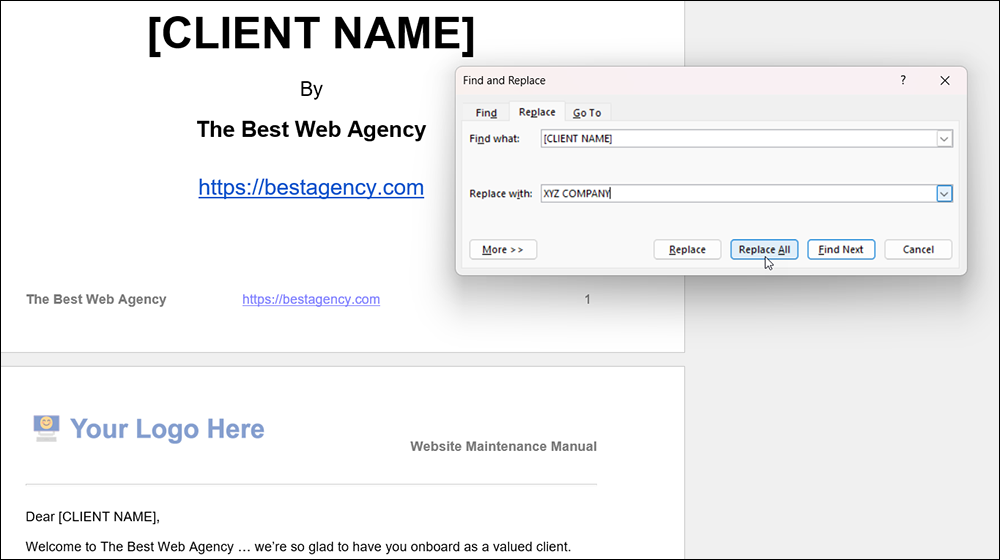
Your client’s name should now be displayed throughout the manual’s content.
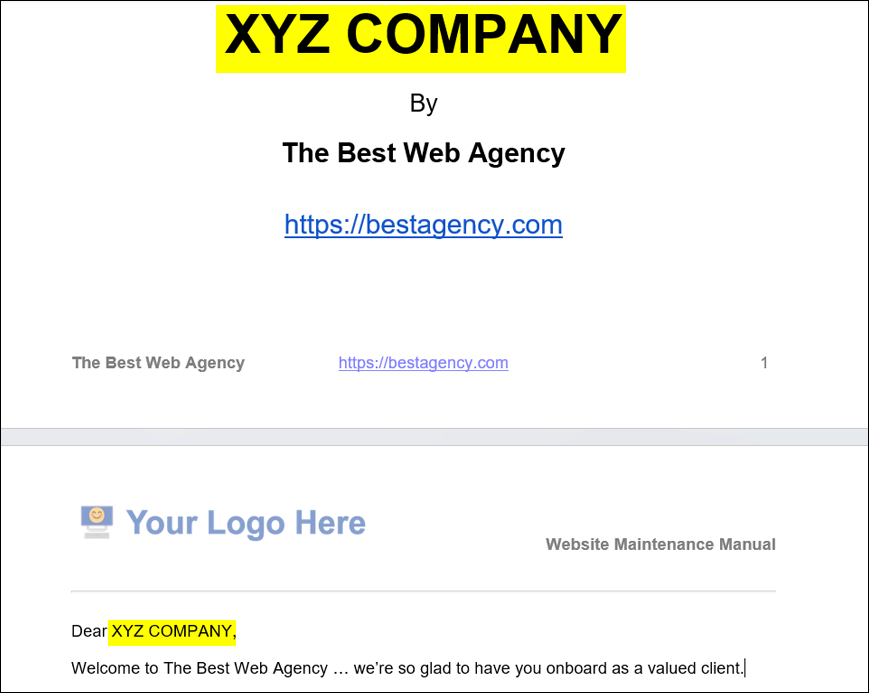
Your manual is now fully branded and personalized. Save it as a PDF file and distribute this file to your client.
How To Customize The Maintenance Objections Guide
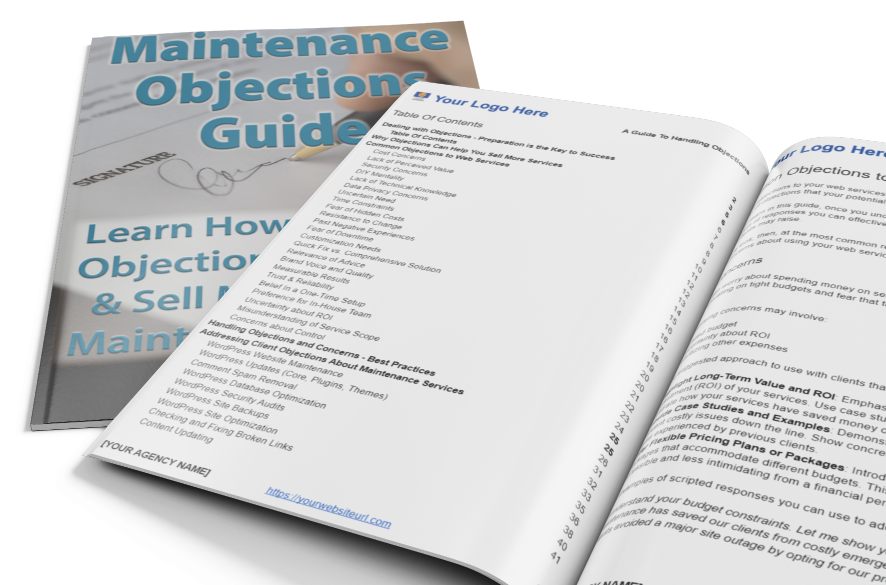
The Maintenance Objections Guide is a fully editable document. You can edit any and all of its content and use it to train your sales staff.
Note: This guide is for your internal use only. DO NOT distribute this guide to clients!
To customize the Objections Guide, do the following:
- Download the Guide from your Member’s Area.
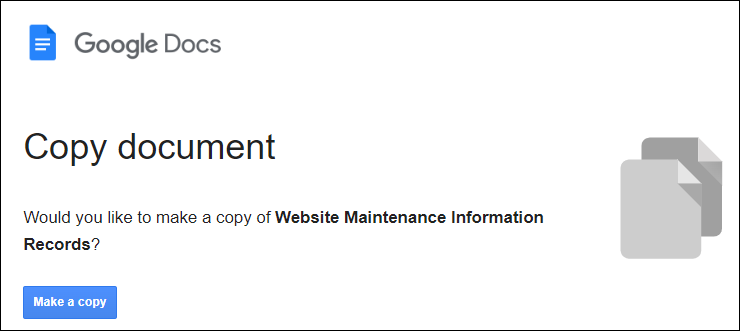
- As the file is in Google Docs format, you will be asked to make a copy and save it to your Google Drive account.
- After making a copy, add your branding (see the tutorial for customizing the CWMM) and SAVE AS a copy (i.e. your branded master).
- Go through and edit the content if required.
- Save your edited document as a PDF and distribute it to your sales team.
How To Set Up Your Maintenance Client Training Emails
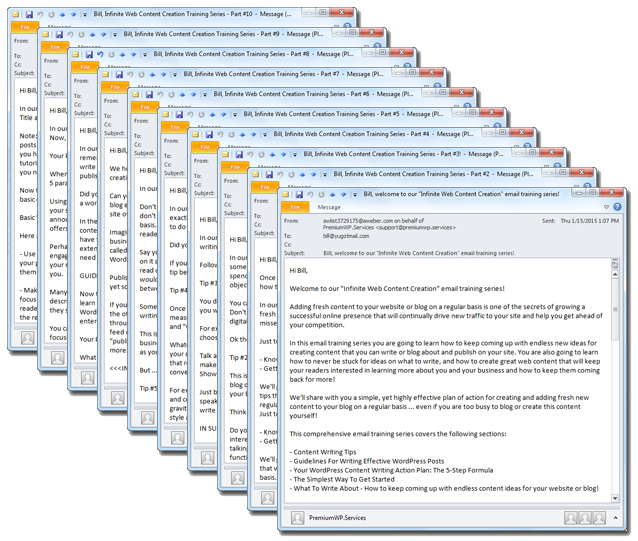
Use The Maintenance Client Training Emails together with the WMCC to create a “hands-free” automated service that will:
- Inform your clients about the importance of performing regular website maintenance.
- Educate your clients about the value of your services
- Upsell your website maintenance services and web care plans.
Note: These “copy and paste” emails are fully editable.
How to use:
- Download the emails from your Member’s Area.
- As the file is in Google Docs format, you will be asked to make a copy and save it to your Google Drive account.
- After making a copy, add your branding (see the tutorial for customizing the CWMM) and SAVE AS a copy (i.e. your branded master).
- Go through and edit the content if required. You can add or delete content, include links to additional products, services, or web pages, add affiliate links, special offers (e.g., a discount coupon or promotion on the last page), etc.
- Save your edited templates.
- Copy and paste the emails into your email service or autoresponder (e.g. Mailchimp, Aweber, etc) and set up a drip schedule (e.g. every 2-3 days).
- Set up a form on your site where clients can sign up to receive your training emails (or add them manually).
Using Your Maintenance Service Sales Scripts
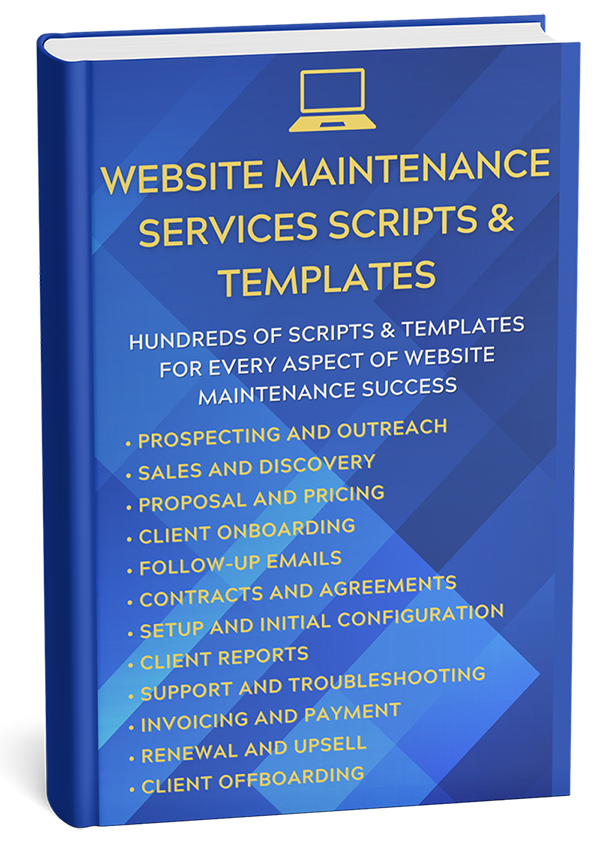
The Maintenance Sales Scripts Guide is a fully editable document. Use it with the Maintenance Objections Guide to boost sales conversions, upsell clients into using your services, and train your sales team to sell your services more effectively.
Note: These scripts are for your internal use only. DO NOT distribute these scripts to clients!
How to use:
- Download the scripts from your Member’s Area.
- As the file is in Google Docs format, you will be asked to make a copy and save it to your Google Drive account.
- After making a copy, add your branding (see the tutorial for customizing the CWMM) and SAVE AS a copy (i.e. your branded master).
- Go through and edit the content if required.
- Save your edited scripts as a PDF document.
- Share it with your sales team and use the scripts to grow your business.
Marketing Swipe Guides
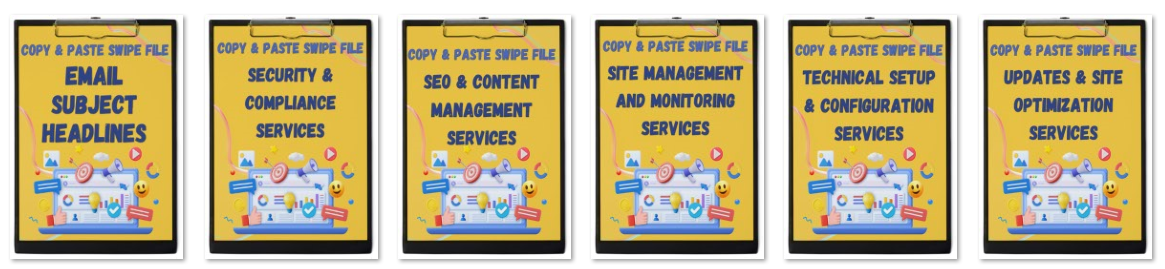
The Marketing Swipe Guides are fully editable.
Note: These swipe guides are for internal use only.
How to use:
- Click on the download links for these files in your Member’s Area.
- As the file is in Google Docs format, you will be asked to make a copy and save it to your Google Drive account.
- After making a copy, add your branding (see the tutorial for customizing the CWMM) and SAVE AS a copy (i.e., your branded master).
- Edit the content however you like.
Lead Magnets

Lead magnet reports and email series are fully editable.
💡Tip: Feel free to edit and repurpose the content as blog posts, social media content, etc.
How to use:
Lead Magnet – Reports
- Click on the download links for the report files in your Member’s Area.
- The files are in Google Docs format. You will be asked to make a copy and save these to your Google Drive account.
- After making a copy, go through and edit the report content.
- Save your report as a PDF document.
- Upload the PDF file to your server and note the download link
- Upload your lead-generation report to a storage service (e.g., Google Drive, Dropbox, Amazon S3) and generate a download link.
Lead Magnet – Email Series
- Click on the download links for the email files in your Member’s Area.
- The files are in Google Docs format. You will be asked to make a copy and save these to your Google Drive account.
How To Use The Emails
- Set up the Lead Magnet Download:
- Add your lead-generation report download link.
- Customize Each Email:
- Go through each email and replace all placeholders (e.g., [INSERT DOWNLOAD LINK TO REPORT], [Your Name], [Contact us here.]) with your specific links and details.
- Edit the content as needed to suit your tone and message. Remove markers like “CTA” (Call To Action), which are included as a guide.
- For additional CTAs, check the resources available in the Member’s Area (e.g., Marketing Swipe Files).
- Set Up a Campaign in Your Email Service:
- Create a new campaign in your email service provider (e.g., Mailchimp, Aweber).
- Copy and paste each email into your autoresponder and set a desired delivery interval (e.g., every 2 days) to create a 7-part series.
- Preview and Test:
- Before activating, preview each email and test the sequence to ensure it works as expected.
- Activate and Grow Your List:
- Once your automated lead generation funnel is live, build your prospect list, broadcast special offers, and grow your client base. ✨
Lead Magnet – Cover Graphics
- Click on the download links for the cover graphics in your Member’s Area.
- The files are in ZIP format. Download the ZIP file to your computer and extract the folder contents.
- Upload the graphics to your site’s Media Library or Media storage and use these to promote the report to site visitors.
Lead Magnet – CTAs
- Download the CTAs (Call to Action) swipe file from the Member’s Area.
- Use the CTAs in your website, emails, social media, online ads, forms, sidebar widgets, etc. to promote the report to your site visitors and prospects.
Content Plans
Your ideal target market for selling WordPress website maintenance services includes audience groups like:
- Business owners with WordPress websites – All business websites need maintenance. WordPress website owners are your main target audience.
- Digital agencies – Partnering with digital agencies allows you to provide quality white-label maintenance services while leveraging their existing client base and benefiting from their client-acquisition efforts.
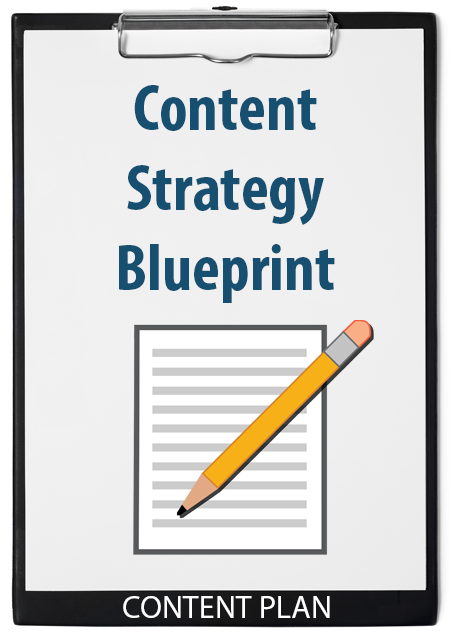
To help you target these audience groups, we have developed a strategic Content Marketing Blueprint and created various SEO-researched Content Plans to grow organic search traffic and social traffic with blog posts, social media content, and more.
We recommend that you:
- Read the Content Strategy Blueprint document first, then
- Choose any of the Content Plans to create content targeted to your ideal audience and grow your site organically using blog posts and articles, increase your reach and visibility using social media, grow a subscriber list using email newsletters, advertise your services using online ads, etc.
💡Tip: We have created over 2+ years’ worth of content plans that you can use to increase exposure for your business and services online.
How to use:
Content Strategy Blueprint & Content Plans
- Click on the download links for the files in your Member’s Area.
- The files are in Google Docs format (Content Plans) and Google Sheets (Kwd Research). You will be asked to make a copy and save these to your Google Drive account.
- After making a copy, go through and review/edit the content.
- Hand the guide to your content writing team/freelance content writer(s). Each Content Plan contains a brief with all the instructions writers need to create and deliver your finished content.
- Publish the finished content on your site and promote it using various methods, e.g., Google Search Console (using a ping/sitemaps notifications service), posting snippets or “teasers” on social media, adding links to your email newsletters, using paid ads, etc.)
Checklists & Templates
Checklists and templates are fully editable.
Note: Checklists are typically for internal use only, and Templates are for distribution to your clients.
How to use:
- Click on the download links for these files in your Member’s Area.
- As the file is in Google Docs format, you will be asked to make a copy and save it to your Google Drive account.
- After making a copy, add your branding (see the tutorial for customizing the CWMM) and SAVE AS a copy (i.e., your branded master).
- Go through and edit the content if required.
- Save your edited files as a PDF document.
- Share it with your sales team (checklists) or clients (templates).
Disclaimer:
The information and materials available in the digital content downloads area are provided for general informational purposes only and do not constitute legal advice. We are not a law firm and do not provide legal services. We recommend that you consult with a qualified legal professional for guidance on legal documents, including but not limited to maintenance service agreements, contracts, and any other legal matters. Use of this content does not create a lawyer-client relationship.
By using this content, you acknowledge that you have read and understood this disclaimer.
[wlm_firstname], Register For Updates
If you haven’t registered yet to receive training emails and product updates, please fill in and submit the form below: